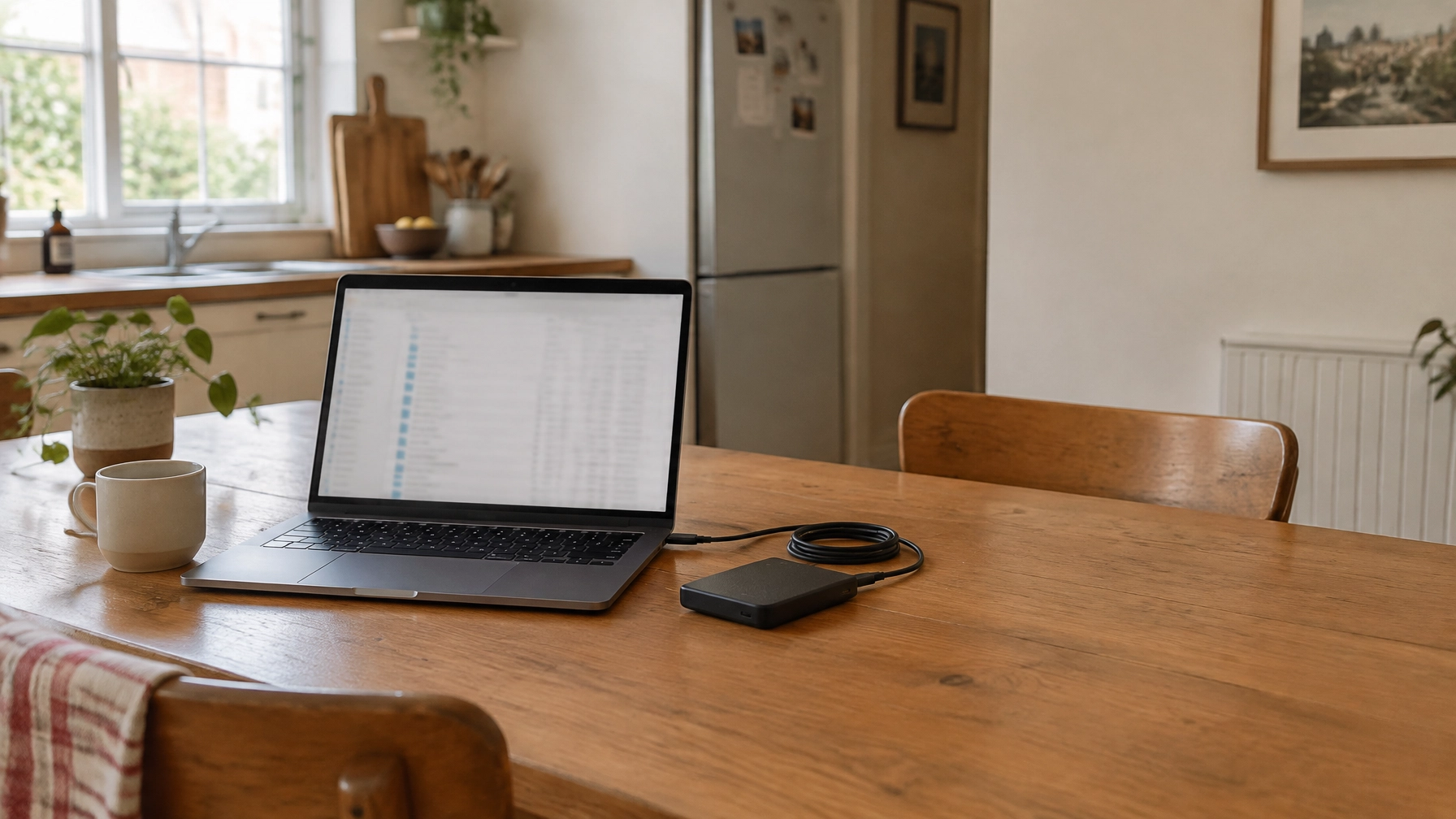
Data recovery Melbourne starts with one question: is the problem with the files, or with the drive itself? A file deleted by mistake is a different job from a hard drive that clicks, grinds or will not start.
At Mr IT, we handle logical problems such as deleted files and some corrupted file systems directly. If a drive appears to have a mechanical fault, we arrange an assessment with a specialist lab. We are not a clean-room lab, and we will tell you plainly when that is where your drive needs to go.
What does data recovery Melbourne actually mean?
Data recovery Melbourne wide means trying to retrieve files you cannot reach through normal means. The next step depends entirely on whether the problem is logical or physical, because the two need opposite responses.
With a logical problem, the drive itself may still work, but its files or file system have been affected. This can happen after accidental deletion, an interrupted update, file-system corruption or an accidental format. If the drive is healthy, we can assess it and work on recovering accessible data.
With a mechanical problem, something inside the drive may have failed. Clicking, grinding, repeated beeping, or a drive that is not detected can be warning signs. Recovery software cannot repair a broken mechanism. Continuing to run the drive may make the damage worse.
In a data recovery Melbourne job, we first try to understand what happened and what the drive is doing now. Our guide on what to do if your hard drive fails explains why a noisy drive should be switched off rather than tested repeatedly.
What can be recovered, and what usually cannot?
It depends on the cause, the type of storage, and what has happened since the files went missing. Recovery is never something we can guarantee just from a description of the problem.
- Deleted files: Sometimes recoverable if the data has not been overwritten. An SSD may clear deleted data differently from a traditional hard drive. Read more about what happens when you delete a file.
- Corrupted partitions or file systems: Files may still be present even if Windows or macOS cannot read the drive normally. Avoid accepting repair or format prompts until you know what they will do.
- Accidental format: Some files may remain, but using the drive after formatting can overwrite them. Stop writing to it.
- A failing drive: If it is still readable, copying files may be possible, but unusual noises or disconnects are a reason to stop and seek advice.
- A dead drive: If the device is not detected or will not power up, recovery may need a specialist lab. The cause and condition of the drive matter.
- Water damage: Do not power on a wet computer or drive to “see if it works”. It needs assessment before further use.
- SSD loss: Recovery after deletion can be limited, particularly if the SSD has cleared the data. Encryption and the availability of the correct recovery key can also affect access.
- RAID or multi-drive storage: The configuration and condition of each drive matter. Avoid changing the array or rebuilding it without advice.
The distinction between a missing file and a truly inaccessible file is explained in our guide to are deleted files actually deleted. It is useful background, but if the drive is making noise, leave it off.
What should you do in the first hour?
The safest first steps are simple. They help prevent accidental changes that could make recovery harder.
- Stop using the affected computer or drive. If you suspect a drive failure, shut the computer down. Do not keep restarting it to check.
- Do not write new data to the affected drive. Do not download a recovery program onto it, install updates or save files there.
- Check the Recycle Bin or Trash. If the file is there, restore it to a different drive or location if you can.
- Check cloud storage and version history. OneDrive, iCloud, Google Drive and other services may have a deleted-items folder or an earlier version.
- Make a note of what happened. Write down whether the computer was dropped, lost power, showed an error, or asked you to format a drive.
- Keep the drive as it is. Do not open it, shake it, freeze it or keep reconnecting it if it is behaving unusually.
For the basics of making copies and checking your setup before trouble starts, see our guide to safeguarding your data.
What destroys your chances of recovery?
There is no single action that guarantees data loss, but some common “fixes” can overwrite files or add stress to a failing drive.
- Running recovery software on a failing drive: Repeated reads can put extra strain on a drive that is already struggling. If it clicks, grinds or disconnects, stop.
- Reinstalling Windows: Installation files and updates may overwrite the data you are trying to retrieve.
- Formatting when prompted: A message asking you to format a disk is not proof that the files are gone. Formatting can change information needed for recovery.
- Using the freezer trick: Freezing a drive can cause condensation and further damage. It is not a safe repair.
- Repeated restarts: Each attempt can put more stress on a mechanical fault and may turn a limited problem into a worse one.
- Saving recovered files back onto the same drive: The files you save may overwrite other data you still want to recover.
If a drive is making an unusual noise, switch it off and leave it off. Do not run repair commands or accept prompts just to get the computer working again before the data has been considered.
How does data recovery Melbourne work step by step?
For a data recovery Melbourne assessment, we start by asking what happened, what files matter and whether there is a backup. We then check whether the drive appears to have a logical fault or a physical one.
For a healthy drive with a logical problem, the general steps are:
- Assess the drive and the symptoms. We check what the computer can detect and what errors appear, without making unnecessary changes.
- Make an image or clone where appropriate. A working copy lets recovery work proceed without repeatedly using the original drive. This is not suitable for every failing drive; noisy or unstable hardware may need a lab.
- Recover files from the image or drive. For logical issues, we use suitable recovery methods to look for the affected files.
- Check the recovered files. We open a sample where possible and confirm that the files are readable. Finding a file name does not always mean the file itself is intact.
- Return recovered data on a separate drive. Recovered files should not be saved back onto the drive they came from.
For a suspected mechanical fault, we do not pretend to perform clean-room work. We can arrange an assessment with a specialist lab and explain the next step before anything proceeds. For other suitable computer problems, our services page explains the support we provide.
What does data recovery cost, and what changes the price?
Our standard rate is $187 per hour including GST, with no call-out fee. We assess the problem first, explain what we have found, and quote any further work for your approval before proceeding.
The work involved depends on the type of fault, the drive’s condition, the number of devices involved and whether the data can be accessed logically. A specialist lab job is different from our hourly support: the lab assesses the drive and sets out its own options and costs. We arrange that assessment rather than quoting a lab fee we do not control.
An honest data recovery Melbourne assessment helps you decide whether the likely cost is sensible for the value of the files. If the drive is old or badly damaged, recovery may not be practical, and we will say so rather than start work. We will explain what we know and what remains uncertain before you decide.
For general computer work, see what computer repairs actually cost. That page covers our repair pricing, not a specialist lab’s charges.
When is your data a job for a clean room lab?
A clean room lab is generally needed when a hard drive has a mechanical fault that requires the drive to be opened or repaired internally. Clicking, grinding, a drive that will not spin, or a drive that is no longer detected can point to this sort of problem.
A clean room helps limit dust and other particles around exposed drive parts. Opening a drive at home or in an ordinary workshop can damage it further. Mr IT does not carry out clean-room repairs. If the symptoms suggest physical failure, we can arrange an assessment with a specialist lab and explain the options we receive.
Switch the drive off and do not open it yourself. If it was dropped or exposed to liquid, mention that when you ask for help.

Can you do it yourself?
Sometimes, if the drive is working normally and the problem is a recent deletion or a logical fault. First check the Recycle Bin or Trash, cloud version history and any backups. Those options are safer than downloading a recovery tool straight away.
If you decide to use recovery software, follow these precautions:
- Install the software on another computer, not on the affected drive.
- Connect the affected drive only if it is behaving normally and is detected consistently.
- Recover files to a third drive, not the source drive.
- Stop if the drive makes unusual noises, disconnects or becomes slower during the scan.
DIY is not a good choice when the drive is clicking, grinding, wet, dropped, or not detected. It is also not worth risking if the files are irreplaceable and you are unsure what a tool will change. If you need help with a software issue, remote support may be suitable; hardware problems usually need a closer assessment.
How do you avoid needing data recovery Melbourne again?
A backup cannot prevent a drive from failing, but it can make that failure far less disruptive. A useful starting point is three copies of important files, on two different devices, with one copy off site.
- Keep your working files on your computer.
- Use an external hard drive backup or another separate device.
- Keep another copy in cloud storage or at a different location.
- Turn on version history where it is available.
- Test a restore occasionally by opening a few backed-up files.
A backup that has never been tested may not have the files you expect. Check that it runs, that it includes the folders that matter, and that you can restore a file. When using a portable drive, follow the safe removal steps for your system; our guide explains when to safely eject a USB drive.
To avoid needing data recovery Melbourne help again, make the backup automatic and keep at least one copy separate from the computer. That way, one device failing does not take every copy with it, and a bad week stays a bad week rather than a loss.
When should you call a technician?
Call for advice if a drive clicks or grinds, is not detected, has been dropped or exposed to liquid, or contains important files with no backup. It is also sensible to ask before running recovery software if you are unsure whether the drive is failing.
We help homes and small offices across Melbourne, onsite where needed and remotely for suitable software issues. Our computer repairs in Melbourne page explains how to get help. We will discuss the issue in plain English, explain the likely next step and get your approval before additional work.
Visit mrit.tech to book computer repairs or tech support anywhere across Melbourne for your home or small office.