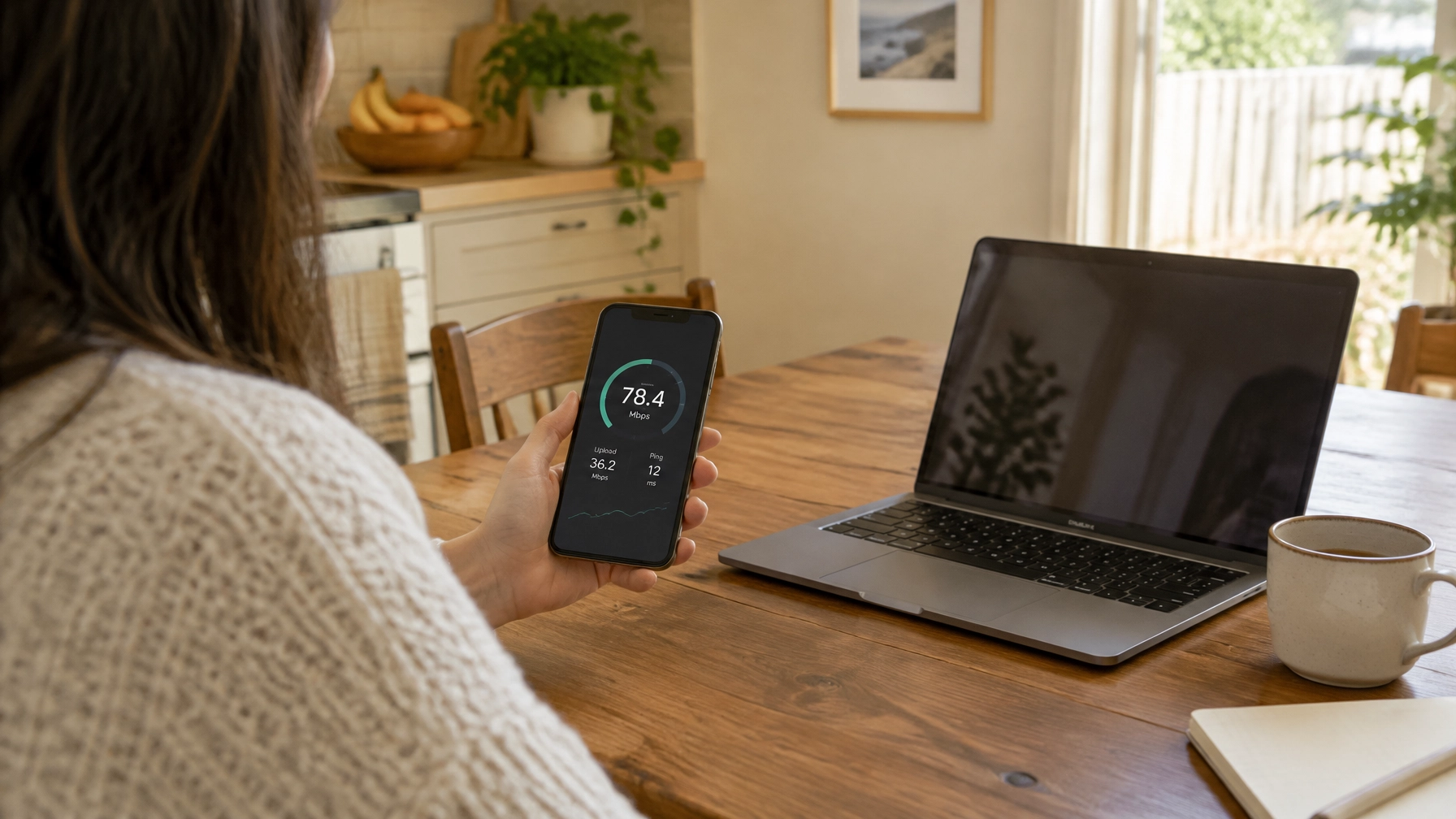
“My internet’s slow” can mean a few different things. The Wi-Fi might be weak in one room, one device might be playing up, or your internet connection might be slow everywhere.
Before you buy a Wi-Fi extender or call someone, use these checks to narrow down what’s happening. The pattern matters: is it slow in every room or just one? On every device or only one? At certain times, or does the Wi-Fi keep dropping out?
Is your Wi-Fi slow everywhere or only in some rooms?
Start by noticing where the problem happens. If your connection is good near the router but poor in a bedroom or home office, the issue is more likely to be Wi-Fi coverage than the internet service itself.
If it’s slow near the router as well as across the home, look at the router, your internet plan or the connection coming into the property. If only one device struggles, that device may be the cause.

What should you check to work out why your Wi-Fi is slow?
Try these checks in order. They’re designed to help you identify the cause before spending money on new equipment.
-
Restart the modem and router properly. Turn them off at the power, leave them off for 30 seconds, then turn them back on. If you have a separate NBN connection box and router, turn both off first. Power the NBN box back on and let it settle, then turn on the router. A restart can clear a temporary glitch, but if the problem keeps returning, it may not be the lasting fix.
-
Test next to the router, then in the problem room. Use the same device for both checks and run a speed test first near the router, then where the connection is slow. If it’s much better nearby, the problem points to coverage, interference or walls between you and the router. If it’s slow in both places, check the service, router or plan next.
-
Try a different device. If your laptop is slow but your phone works well on the same Wi-Fi in the same spot, the issue may be with the laptop. Restart it, reconnect to Wi-Fi and check for software or network updates. If every device is slow, the cause is more likely to be shared.
-
Check how many devices are using the network. Streaming, video calls, game downloads and cloud backups can all use internet capacity. Pause heavy downloads or streaming for a few minutes, then test again. If that helps, the network may be busy at that time, or your plan or router may be struggling to keep up.
-
Check which Wi-Fi band you’re using. Many routers offer 2.4 GHz and 5 GHz Wi-Fi. The 2.4 GHz band reaches further but is slower and often more crowded. The 5 GHz band can be faster but has a shorter range. Try 5 GHz near the router, and 2.4 GHz further away, then compare. What works best depends on your home and devices.
-
Look at where the router is placed. An open, central and elevated spot is usually better than the floor, a cupboard or a shelf behind a TV. Thick walls can weaken the signal, as can nearby appliances and objects such as microwaves, cordless phones, aquariums and large mirrors. If you can, move the router to a more open spot and test again.

-
Check for router firmware updates. Firmware is the router’s built-in software. Follow the instructions from your internet provider or router manufacturer to see if an update is available. Updates can resolve known problems, but don’t interrupt the router while one is installing.
-
Check whether your internet plan is the limit. Pause downloads and streaming, then run a speed test and compare the result with the speed stated for your plan. If possible, test using an Ethernet cable as well as Wi-Fi: a wired test helps show whether the internet connection is slow before Wi-Fi comes into the picture. Results can vary, especially at busy times, so note when you test.
-
Consider the router’s age and condition. Older routers may not support the speeds of a newer plan or handle many devices well. Age alone doesn’t mean it needs replacing, though. If it drops out regularly, feels unreliable or can’t deliver the speed you’re paying for, check its condition and capabilities before buying a replacement.
Is it slow at certain times, or does the Wi-Fi keep dropping out?
If your connection is mostly fine during the day but gets slow when everyone is online, the network may be busy. Check whether several people are streaming, downloading or on video calls at the same time. Compare a speed test during a quiet period with one at the time you notice the slowdown.
Dropouts are different from a connection that’s consistently slow. If your Wi-Fi keeps dropping out on several devices, restart the router and check whether it’s in an open spot with good airflow. If dropouts continue throughout the property, the router, interference or internet connection may need closer investigation.
If Wi-Fi connects but a particular device cannot get online, focus on that device first. For example, if a printer not connecting to Wi-Fi is your main concern, check that it’s trying to join the right network and test it closer to the router. A printer problem on its own doesn’t necessarily mean the whole network is faulty.
When might the answer be new hardware?
If your Wi-Fi is strong beside the router but weak in one or more rooms, the problem may be coverage. A Wi-Fi extender can help with a small gap if it’s placed somewhere that still receives a usable signal. For larger homes or several dead zones, mesh Wi-Fi or a wired access point may be a better fit.
Sometimes the NBN equipment’s location limits where you can put the router. Thick or double-brick walls can also make it difficult for a signal to travel through the home. Before buying anything, it’s worth identifying whether the issue is coverage, the router, or the internet connection itself.
Our guide to Wi-Fi extenders, mesh and wired access points explains how those options differ and what to consider before choosing one.
When is it worth calling a technician?
Consider getting help if dropouts affect the whole property, your home has difficult double-brick walls, a small office needs reliable Wi-Fi for several staff, or the router itself appears to be failing. If your tests suggest the internet service is the problem, your provider may also need to investigate.
Mr IT is based in South Melbourne and visits homes and small offices across Melbourne. We’ve helped more than 1,557 Australians since 2009, and our Wi-Fi and network support includes investigating poor coverage and unreliable connections. We can also help remotely with suitable software issues.
Our rate is $187 per hour, including GST, with no call-out fee. Within the first hour, we explain the cause and quote any further work. Nothing extra proceeds without your approval. If your connection problem is part of a wider computer issue, find out about computer repairs in Melbourne.
Visit mrit.tech to book computer repairs or tech support anywhere across Melbourne for your home or small office.