

There’s nothing quite like that sinking feeling when you cannot understand that why your computer will not turn on after a power outage.
The lights flicker back on after a classic storm, the fridge starts humming again, but your computer? It’s completely dead.
You press the power button, and you get nothing. No lights, no fan noise, no reassuring whir—just an unnerving, deafening silence.
If you’ve ever faced a stubbornly lifeless computer after a power outage, you’re not alone. It’s one of the most common tech headaches for households across Melbourne.
The sudden loss and return of power can wreak havoc on sensitive electronics, leaving you wondering if your precious family photos, important work-from-home documents, and expensive hardware are gone for good.
The good news is that it’s often a fixable problem. The cause can range from something incredibly simple to a more serious hardware failure. Before you start to panic and price out a new machine, let’s take a deep breath and walk through what might be going on, how to troubleshoot it safely, and what steps you can take to protect yourself next time the power goes out.
Step 1: The Golden Rule – Check the Power Source First
Before you condemn the computer, you must play detective with your home’s electricity. It might sound almost too basic, but a significant number of “dead PC” cases have nothing to do with the computer itself.
Is the Power Point Actually Working?
When the grid comes back online after an outage, it’s rarely a clean, smooth event.
The initial surge of returning electricity can be volatile, which is why modern homes are equipped with safety features to protect your wiring and appliances.
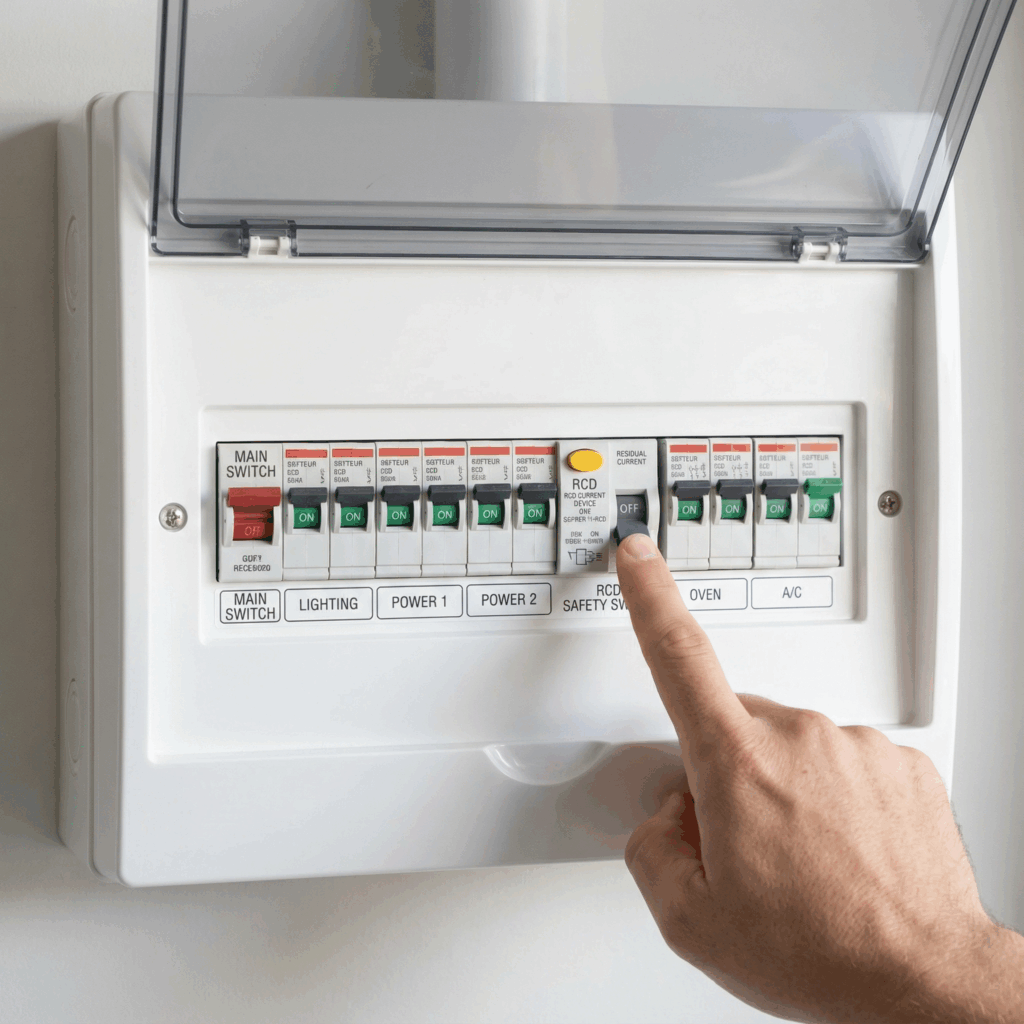
Meet Your Switchboard: Head to your home’s switchboard (often called a fuse box). You’ll see a series of switches. These are circuit breakers and safety switches (RCDs). An RCD is designed to trip and cut the power in a fraction of a second if it detects a dangerous electrical fault, such as a surge. Look closely—is one of the switches in the ‘OFF’ position when the others are ‘ON’? That’s a tripped switch. Flick it back on. If it stays on, you may have just solved your problem. If it trips again immediately, you have a bigger electrical issue that needs an electrician.
The Simple Lamp Test: The easiest way to verify a power outlet is to unplug the computer and plug in something you know works, like a standard lamp or your phone charger. If the lamp doesn’t light up, the outlet is dead. The issue lies with your home’s wiring, not your PC.
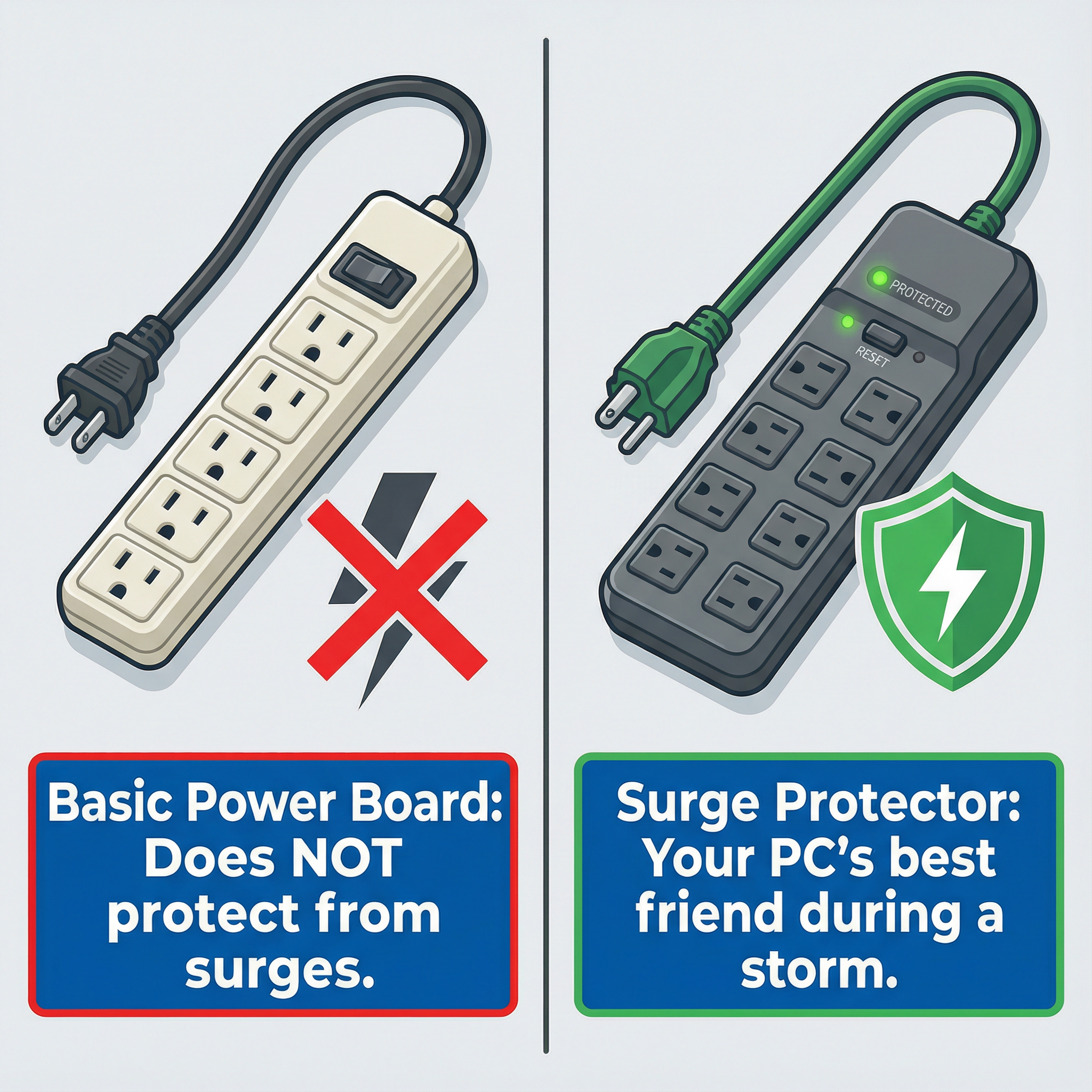
Don’t Underestimate the Humble Power Board: Most of us have our computer, monitor, and speakers plugged into a single power board. These are common points of failure. Cheaper multi-outlet boards offer zero protection and can easily fail. Many, however, have their own built-in, tiny circuit breaker. Look for a small, often red or black, button on the board’s casing. This is a reset switch. Press it firmly. If you hear a click, you may have just restored power.
- Check the Computer’s Power Cable: Lastly, check the physical cable that runs from the computer to the wall. Ensure it’s plugged in firmly at both ends—it can sometimes get knocked loose. While rare, the cable itself can also fail. If you have a spare one (often the same type used for monitors), it’s worth swapping it out to be certain.
If you’ve confirmed the outlet is live, the power board is reset, and the cable is secure, but your PC is still unresponsive, it’s time to investigate the computer’s internal hardware.
The Most Common Culprit: A Fried Power Supply Unit (PSU)
If the power is fine at the wall, the investigation moves inside the computer case. The most likely component to fail in a power event is the Power Supply Unit (PSU). Think of the PSU as the gatekeeper and translator for all the electricity your computer uses. Its crucial job is to take the powerful 240 volts from the wall outlet and convert it into the stable, lower voltages (like 12V, 5V, and 3.3V) that your computer’s delicate internal components need.
Why the PSU is the Sacrificial Lamb
The PSU is the first component to receive electricity, making it the primary line of defence against electrical anomalies. Power outages create two major threats: the sudden cut-off and the subsequent power surge on return. That surge can send a jolt of electricity far exceeding the standard 240 volts down the line. A well-built PSU is designed to absorb this hit and fail in a controlled way—essentially sacrificing itself to prevent the fatal surge from reaching the more expensive and sensitive parts like the motherboard and processor.
If the PSU is fried, your computer will be completely inert. No lights, no fans, no sounds. It’s the equivalent of a car with a dead battery. Replacing a PSU is a very common and straightforward repair for a technician and is, in many cases, the complete solution.
Important Safety Note: Never attempt to open the PSU’s metal casing yourself. It contains large capacitors that can retain a dangerous and potentially lethal electrical charge for a long time, even after being unplugged. Diagnosis and replacement should be left to an expert.
When the Damage Runs Deeper: Collateral Damage Inside Your PC
Sometimes, a particularly violent power surge is too much for the PSU’s defences. In these cases, the excess voltage can “jump” past the PSU and wreak havoc on other critical components, leading to more complex and costly problems.
The Motherboard: A Fried Nervous System
The motherboard is the large, central circuit board that acts as the computer’s nervous system, connecting every single component. If a surge reaches the motherboard, it can fry the intricate circuits, leading to a variety of symptoms:
- The PC remains completely dead, even after testing with a known-good power supply.
- The fans and lights might twitch on for a split second before the system immediately shuts down. This is often a sign of a critical short circuit.
- The computer powers on—fans spin, lights are on—but there is absolutely no signal to the monitor, and you might hear a series of specific beeps (POST codes) indicating a fatal error.
Damage to the motherboard is a serious diagnosis. For older computers, the cost of a replacement board and the labour involved can often approach the cost of a new, more modern machine.
Your Data at Risk: Hard Drives (HDD) and SSDs
A sudden power loss can be catastrophic for your storage drives.
- For traditional Hard Disk Drives (HDDs): These drives have a physical read/write head that hovers nanometres above a spinning platter. A sudden power cut can cause this head to “crash” onto the platter’s surface, causing physical damage that can lead to data loss.
- For modern Solid State Drives (SSDs): While SSDs have no moving parts, they are still vulnerable. A power surge can fry the controller chip on the drive, rendering it unreadable. A sudden shutdown can also corrupt the data being written, leading to a corrupted operating system or lost files.
This highlights the absolute importance of having a robust backup strategy, as data recovery from a physically damaged drive can be incredibly expensive.
It’s On, But It’s Not Working: The Scourge of Software Corruption
What if your computer does show signs of life? The power button lights up, the fans start to whir, but then… nothing happens. It might get stuck on the manufacturer’s logo screen, display a dreaded “Blue Screen of Death” (BSOD), or get stuck in an endless loop of trying to “Automatically Repair” itself.
This is a classic symptom of software corruption. Your computer is a complex machine that is constantly reading and writing system files in the background. If the power is cut abruptly, it might have been halfway through a critical process, like applying a Windows update or updating a driver. When it tries to boot back up, it finds a half-written, scrambled file where it expects a clean one. It doesn’t know how to proceed, causing it to freeze, crash, or fall into a repair loop.
The good news here is that your hardware is likely perfectly fine. Your personal files, photos, and documents are often still intact on the drive, even if Windows itself is broken. A technician can often repair the corrupted operating system using specialised tools without needing to erase your data, getting you back up and running relatively painlessly.
Prevention is Better Than a Cure: Fortifying Your Tech for the Next Storm
You can’t stop the summer storms, but you can absolutely reduce the risk to your valuable electronics.
- A Quality Surge Protector is Non-Negotiable: Do not mistake a cheap, multi-outlet power board for a surge protector. A basic power board is just an extension cord with more outlets. A surge protector is a vital piece of insurance. It contains special components called Metal Oxide Varistors (MOVs) that absorb excess voltage. Look for a model with an indicator light that confirms it’s actively protecting your devices and check its “joule rating”—the higher the number, the more energy it can absorb. Remember, surge protectors are not immortal; after a major electrical event, they should be replaced as their protective capacity is diminished.
- The Ultimate Defence: Unplugging: The only 100% guaranteed way to protect your computer from a lightning-induced surge is to have it completely disconnected from the wall. If you’re at home and hear a storm rolling in, take 60 seconds to shut down and unplug your desktop, monitor, and any other sensitive electronics.
- The Power User’s Choice: An Uninterruptible Power Supply (UPS): For anyone who works from home or simply can’t afford to lose data, a UPS is the best investment you can make. A UPS is essentially a big battery. You plug it into the wall, and your computer plugs into it. When the power cuts out, the battery kicks in instantly, giving you several minutes of power to save your work, log off, and shut down your computer gracefully. It completely isolates your PC from both power cuts and surges.
Your Troubleshooting Checklist
If your computer won’t start after an outage, run through this list in order:
- Check the Power Point: Test it with another device like a lamp.
- Check Your Switchboard: Look for any tripped safety switches.
- Check Your Power Board: Press its reset button.
- Try a Different Power Cable: Swap with your monitor’s cable if it’s the same type.
- Listen and Look: When you press the power button, do you see any fleeting lights or hear any clicks, beeps, or fan twitches at all? Any sign of life, however brief, is a valuable clue.
If you’ve run through this checklist and your machine is still lifeless, it’s time to stop and call for professional help. Repeatedly trying to power on a potentially damaged computer can sometimes cause further harm to its components.
Don’t Despair, Get an Expert Opinion
A dead computer after a power outage is a stressful and frustrating experience, but it’s very rarely a hopeless situation. More often than not, the issue is a single, replaceable component—like the power supply—that has performed its duty by protecting the more valuable parts of your system.
By methodically following the basic troubleshooting steps, you can quickly rule out simple external electrical issues. If the problem lies within the machine, getting a professional diagnosis is the smartest, safest, and most cost-effective path forward. It eliminates guesswork, ensures you aren’t replacing healthy parts, and gives you the best possible chance of getting your computer—and your precious digital life—back in working order.
