

Let’s learn How To Fix Slow Computer. We have all been there, just poured your morning flat white, sat down at your desk ready to tackle the day, and you hit the power button on your computer.
And then… you wait. You could probably duck to the shops for a sausage roll and be back before it’s ready. The screen glows, the little circle spins, and you stare blankly, your motivation draining away with every passing second.
What should take less than a minute stretches into five, and by the time your desktop finally appears, cluttered with icons, you’ve already lost a chunk of your morning.
It might not seem like a big deal, but let’s do the maths. Five minutes wasted every single day adds up to over 30 hours a year.
That’s nearly a full work week spent just watching a loading screen! That’s time you could have spent planning a weekend getaway, catching up on the news, or simply enjoying your coffee while it’s still hot.
The frustration is real, but the good news is you’re not stuck with it.
A slow startup isn’t a life sentence for your machine; it’s a symptom of a problem that, in almost every case, is entirely fixable. Let’s pop the hood and have a look at the common culprits behind a sluggish startup and what you, the everyday Aussie computer user, can do about it.
Why Your Computer is Slower Than a Sunday Morning
A slow boot-up is rarely due to a single issue. It’s often a combination of factors that build up over time, like digital rust. Here are the most common reasons your computer is taking its sweet time.
1. The Startup Stampede: Too Many Apps Rushing the Gates
One of the biggest offenders is the sheer number of programs trying to launch the moment you turn your computer on. Many applications, especially game launchers (we’re looking at you, Steam and Epic Games), music apps like Spotify, cloud storage like OneDrive and Dropbox, and even your printer software, sneakily set themselves to open at startup.
Think of it like trying to get through the turnstiles at the MCG right on the siren—if everyone pushes at once, the whole process grinds to a halt. Your computer has to dedicate memory and processing power to each of these applications before it can let you do anything else.
How to Fix It:
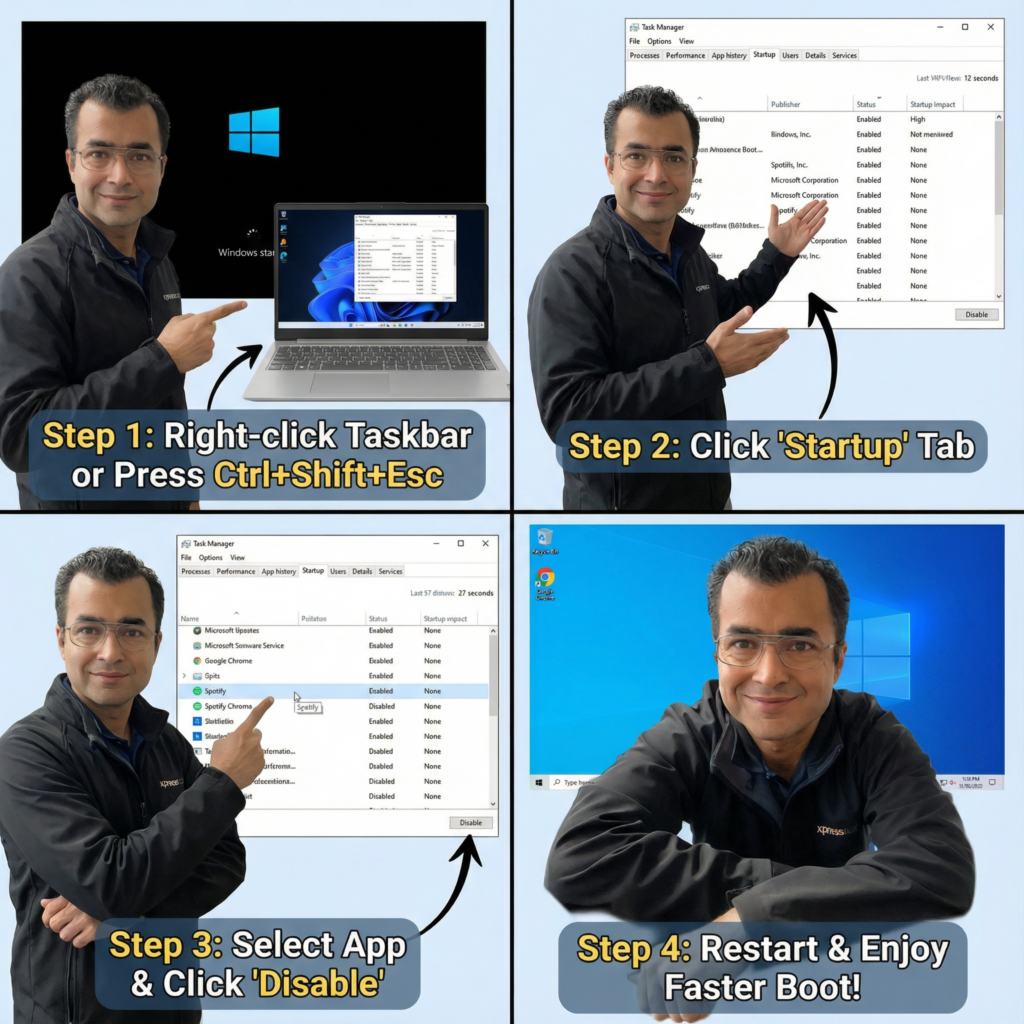
- On Windows: Press
Ctrl + Shift + Escto open the Task Manager. Click on the “Startup” or “Startup Apps” tab. You’ll see a list of programs and their “Startup impact” rating (High, Medium, Low). Right-click on any non-essential program (like Spotify, Discord, or Adobe Updater) and select “Disable”. Be careful not to disable your antivirus or critical system drivers! - On macOS: Go to
System Settings > General > Login Items. Under “Open at Login,” you can select any applications you don’t need immediately and click the minus (-) button to remove them.
2. Your Hardware Can’t Keep Up with the Sizzle
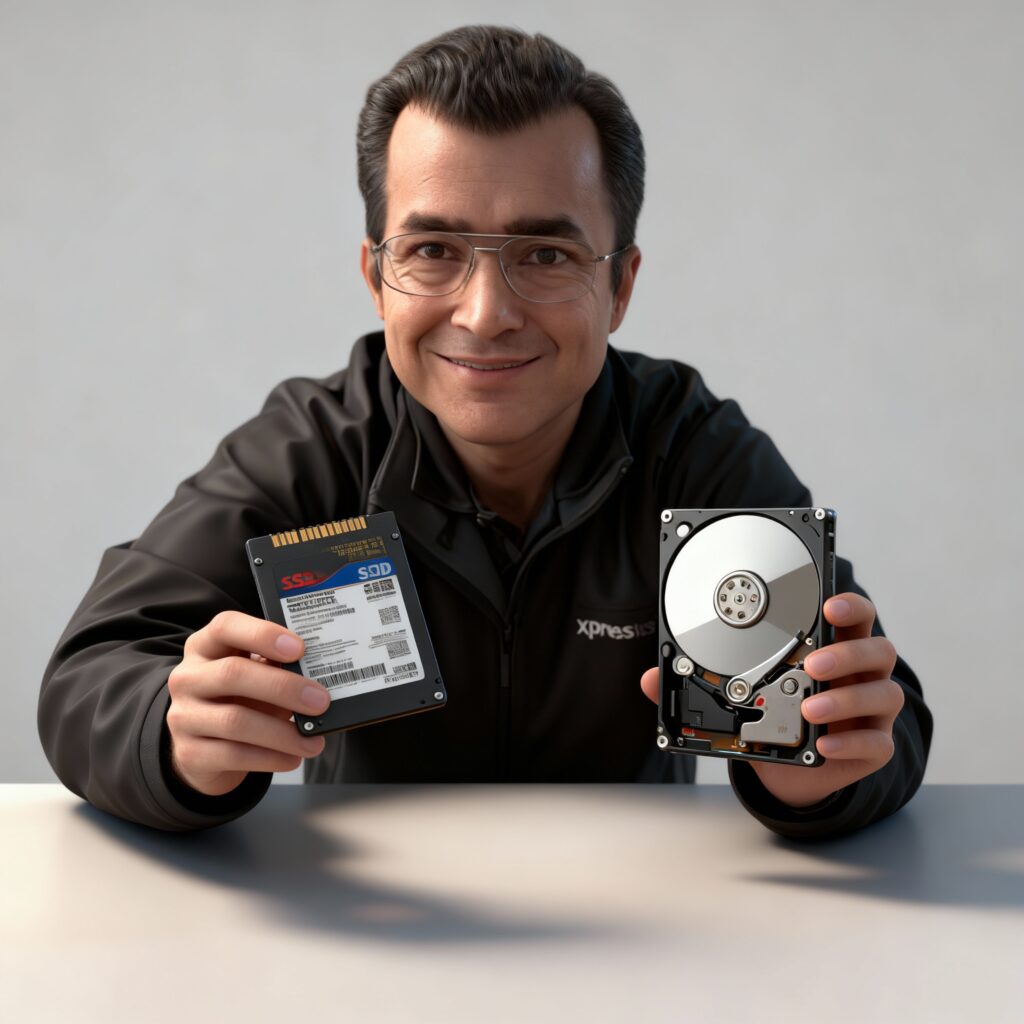
Sometimes, the issue isn’t what your computer is doing, but what it’s doing it with. Technology moves fast, and hardware that was top-of-the-line a few years ago might be struggling to keep pace with modern software demands.
The Hard Drive: From Ute to Electric Vehicle
The single biggest hardware bottleneck for startup speed is the hard drive. For years, computers used mechanical hard disk drives (HDDs)—spinning platters with a needle, like a tiny record player. They’re reliable for storing large amounts of data, but they are mechanically slow when it comes to reading the files needed to start your operating system.
If your computer still has an HDD, it’s like driving a trusty old ute in city traffic—it gets the job done, but it’s not exactly zippy. The modern equivalent is a Solid-State Drive (SSD). An SSD has no moving parts and uses flash memory, making it monumentally faster. Upgrading to an SSD is the most dramatic performance boost you can give an older computer. The difference is night and day; your startup time can go from minutes to mere seconds.
RAM: Not Enough Elbow Room
Random Access Memory (RAM) is your computer’s short-term memory, or its “workbench space.” When you start your PC, it loads the operating system and startup programs into RAM. If you don’t have enough RAM for everything it’s trying to juggle, it has to shuffle data back and forth to the much slower hard drive, a process called “swapping.”
Think of it as trying to prepare a huge meal on a tiny chopping board. You’re constantly moving ingredients around, and everything takes much longer. For most users in Australia browsing the web, streaming, and doing some office work, 8GB is the bare minimum, but 16GB is the sweet spot for smooth multitasking.
3. Pesky Malware and Viruses Dragging You Down
If your computer has suddenly become slow, malware could be the culprit. Viruses, spyware, and other malicious software often run silently in the background from the moment your computer boots up. They consume valuable resources—your processor time, RAM, and internet bandwidth—slowing everything down to a crawl while they carry out their nasty business.
It’s crucial to have a reputable antivirus program installed and to run regular scans. Good internet hygiene, like avoiding suspicious email attachments and dodgy downloads, is your best defence.
DIY Fixes vs. Calling in the Pros
So, what can you do right now to speed things up? Here are a few steps you can take, from simple housekeeping to more advanced tweaks.
Your Quick-Fix Checklist:
- Cull Your Startup Programs: As mentioned above, this is the easiest and often most effective first step. Disable anything you don’t need the second your computer turns on.
- Run a Malware Scan: Use a trusted antivirus program to perform a full system scan. Remove any threats it finds.
- Update Everything: Ensure your operating system (Windows or macOS), drivers (especially for your graphics card), and key software are all up to date. Updates often include performance improvements and bug fixes that can resolve startup issues.
- Disk Cleanup (for Windows users): Windows has a built-in Disk Cleanup tool. It helps remove temporary files, system clutter, and other junk that can accumulate and slow down your system. Simply search for “Disk Cleanup” in the Start Menu.
- Check Your System Files: Sometimes, core operating system files can become corrupted. On Windows, you can run the System File Checker. Open Command Prompt as an administrator and type
sfc /scannow. It will scan for and attempt to repair any broken files.
When to Call for Backup
While the steps above can help, sometimes the problem is more stubborn. If you’ve tried the DIY route and you’re still tapping your fingers waiting for your machine to start, or if you’re not comfortable tinkering with hardware, it’s time to call in a professional.
A hardware upgrade, particularly moving from an HDD to an SSD, requires migrating your entire operating system and all your files—a task that can be tricky and daunting. Similarly, diagnosing deep-seated software corruption or a persistent malware infection is best left to the experts.
A professional technician can quickly diagnose the root cause of the slowdown, recommend the most cost-effective upgrades, and get your computer running faster than ever, saving you from the daily frustration.
Don’t Let Your Computer Dictate Your Morning
That five-minute wait every morning is more than just a minor annoyance; it’s a productivity killer and a source of unnecessary stress. Life’s too short to spend it staring at a loading screen.
By taking a few simple steps to manage your startup apps and keeping your system clean, you can make a significant difference. And if the problem lies with ageing hardware, an upgrade to an SSD can make your old computer feel brand new again.
So, take back your mornings. Whether you do it yourself or bring it to us for a tune-up, fixing a slow startup is one of the best quality-of-life improvements you can make for your daily digital life. Those wasted minutes will be a thing of the past, and you can finally get on with your day.
